Women in Biz Network is thrilled to Announce a New Contest….. (Guess What I am a Judge!)
 Enter to win $10,000 cash,
5 Ultrabook™ Convertible Devices,
5 Windows Phones and more!
Congratulations on following your dreams and starting your own business! Now take it to the next level with the Small Business, Big Dreams Contest. One lucky winner will get $10,000 cash plus a Tech Prize Pack that includes 5 Ultrabook™ Convertible Devices, phones, Office 365 and more!
To enter, simply tell us how you would use the power of Office 365 to make your business dreams come true. Learn more about Office 365 to help you write a winning entry!
Ready to enter the contest?
Tell us how you would use one or more of these amazing features to make your business dreams come true.

 Supporting women business owners is always my top priority and I am thrilled to be a judge on this great contest and look forward to hearing all about your dreams and how we can help you realize them with smart tools like Office 365 for Business.
Microsoft is all about making your business life easier… I love the ease of Sky Drive Pro – let’s talk about it first:
SkyDrive Pro
SkyDrive Pro is your professional library—the place to keep your work documents and other files. When you store your files on SkyDrive Pro, not only you can see them, but you can easily share them with co-workers and access them from your mobile devices. Your files are safely kept in the cloud with SharePoint Online or on your company’s SharePoint 2013 servers.
SkyDrive Pro lets you:
- Store and organize your private documents and other files in a secure location in the cloud.
- Share files and folders with other people in your organization and give them permission to review or edit the content.
- Synchronize files and folders in your SkyDrive Pro and other SharePoint libraries with your computer or mobile devices, so you can access your content offline.
Access SkyDrive Pro
- Click SkyDrive in the header above a SharePoint or Office 365 page and add or work with files and folders in the library from the Quick Launch on the left.

- Upload the documents onto SkyDrive directly from the SharePoint or Office 365 Page or with a document open in an Office program, click File > Save As > SkyDrive. If you haven’t signed in, do that now by clicking Sign In.

Share items in SkyDrive Pro
You can share documents and folders in SkyDrive Pro with people in your organization or external users (learn more about sharing with people outside your organization). As you set up sharing, you can set permissions for viewing or editing the document or folder. When you share a folder, you automatically share all items you place in that folder which provides a quick way to share many documents with other people at once.
Below are the steps to sharing items on SkyDrive Pro
- Click the ellipses (…) next to the document/folder to open the document’s callout and then click Share.

- In the Share window, enter the name of each person you want to invite to share the document/folder. As you type each name, SharePoint searches the address book for matches and lists options. When you see the name you want, click it to add it to the invitation list.
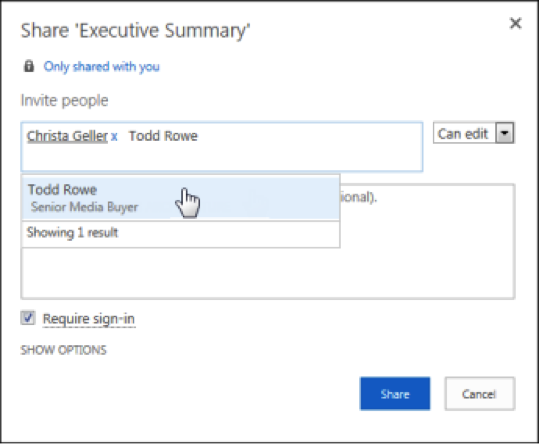
- Select the permission you want to grant invitees from the drop-down menu. You can change the permission for any person later.
- If you want, type a message to be sent to all invitees in an email. The email includes a link to the shared document.
Resources: